
Wireguard
WireGuard is a modern, high-performance VPN protocol that establishes secure point-to-point connections using advanced cryptography.
By setting up WireGuard tunnels, devices can securely communicate over the Internet or private networks, enabling remote access, site-to-site VPNs, and encrypted networking across distributed environments.
Example of setting up Wireguard
Section titled “Example of setting up Wireguard”1. Generate the private key and public key
Section titled “1. Generate the private key and public key”1.1 Server Settings
Section titled “1.1 Server Settings”Navigate to the router menu: SYSTEM > Terminal, enter the username: root, and log in with your set password.
wg genkey | tee privatekey | wg pubkey > publickeycat privatekeycat publickey.png)
Using the command above, you can generate and view the router’s private and public keys, then save their information in a notepad.
1.2 Client Settings
Section titled “1.2 Client Settings”Here, WireGuard for macOS is used for demonstration.
Open WireGuard, click the + sign in the lower left corner, select Add Empty Tunnel, and the public and private keys for macOS WireGuard will be automatically generated, as shown in the following figure.
.png)
2. Add the WireGuard interface
Section titled “2. Add the WireGuard interface”Navigate to the router menu bar NETWORK > Interface, click the Add new interface button at the lower left corner, enter a custom interface name such as wg0, select the WireGuard protocol, and click the Save & Apply buttons. Then it will automatically jump to the configuration page of the wg0 interface.
3. Set up the Wireguard interface
Section titled “3. Set up the Wireguard interface”3.1 General Setup
Section titled “3.1 General Setup”Private key: Paste the private key generated in Step 1
Listening port: Use custom high-bit ports (such as 51820), avoiding common ports.
IP address: Configure a dedicated VPN network segment (such as 10.0.0.1/24), ensuring it does not conflict with the existing local network.
.png)
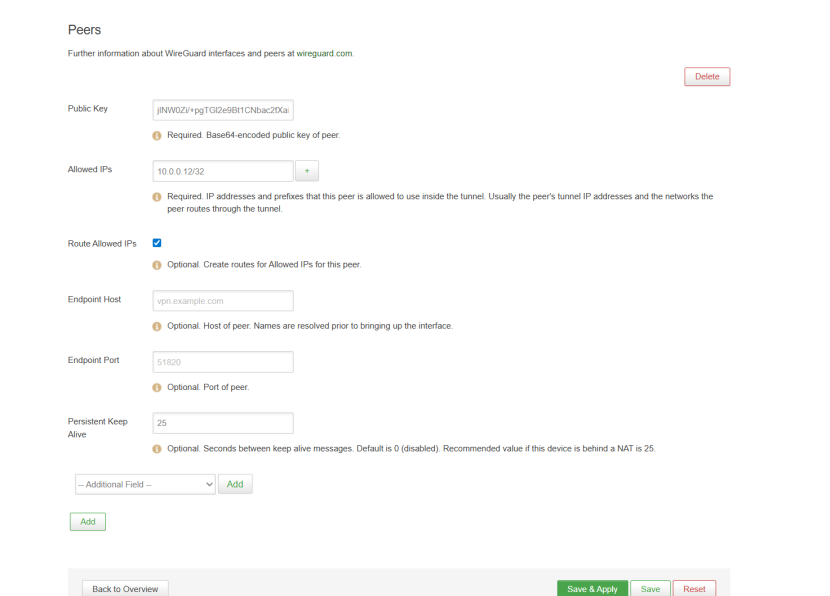
3.2 Peers Setup
Section titled “3.2 Peers Setup”Public Key: Client’s public key (not the server’s public key)
Allowed IPs: The IP address assigned to the client (such as 10.0.0.12/32)
Route Allowed IPs: This needs to be checked; otherwise, the client won’t be able to access the subnet
Endpoint Host: Fill in during client setup. This section can be left blank
Endpoint Port: Fill in during client setup. This section can be left blank
Persistent Keep Alive: Fill in 25 (Maintain connection in NAT environment)
4. Firewall Settings
Section titled “4. Firewall Settings”4.1 Open a listening port
Section titled “4.1 Open a listening port”Navigate to the menu bar NETWORK > Firewall, scroll to the bottom of the page, click the Add button below Zones, and then you will be redirected to the Zones Settings page.
Name: wgzone
Input: accept
Output: accept
Forward: accept
Masquerading: checked
MSS clamping: checked
Covered networks: wg0 (the WireGuard interface created in Step 3)
Allow forward to destination zones: lan
Allow forward from source zones: lan
Finally, click Save & Apply.
.png)
4.2 Traffic Rules
Section titled “4.2 Traffic Rules”In the menu bar NETWORK > Firewall, click the tab labeled Traffic Rules, scroll to the bottom of the page, enter the policy name and protocol under Open ports on router, and then click the Add button. It will automatically navigate to the policy Settings page.
.png)
Name: Allow-WireGuard
Protocol: UDP
Destination port: 51820
Just keep the other Settings as default. Click “Save & Apply” to save the Settings.
.png)
4.3 Custom Rules
Section titled “4.3 Custom Rules”Set up NAT forwarding for bypass routing scenarios.
Click “Custom Rules” on the tab bar.
iptables -t nat -A POSTROUTING -s 10.0.0.0/24 -o br-lan -j MASQUERADEAfter entering the command, click “Restart Firewall”.
.png)
5. Client settings
Section titled “5. Client settings”Here, we use WireGuard on macOS as an example.
5.1 Add Tunnel
Section titled “5.1 Add Tunnel”Open WireGuard and add an Empty Tunnel, consistent with step 1.2 above.
.png)
5.2 Tunnel Settings
Section titled “5.2 Tunnel Settings”PrivateKey = QCqtyyhGWfci4xxxxxx(automatic generation)
Address: The IP address of the client is consistent with the Allowed IPs in step 3.2 above
DNS: The server-side LAN port IP address
PublicKey: Step 1.1 Public key information generated by the server
AllowedIPs: The IP network segment of the VPN channel and the network segment that communicates with the LAN port of the router
Endpoint: The server’s public IP address or domain name, along with port 51820
PersistentKeepalive: Maintain connection in a NAT environment
As shown in the figure, collect the public key information generated by the server and complete the client settings.
.png)
6. Verify wireguard
Section titled “6. Verify wireguard”We can verify the connection status by pinging the server or client’s Tunnel IP to confirm if the tunnel has been successfully established. Typically, after the settings are configured correctly, the Tx/Rx data will be visible on the WireGuard interface, as shown in the figure.
.png)
.png)